 heic-to.app
How to convert HEIC to PNG
- Add your HEIC file — drag & drop it onto the widget or press “Choose a file”.
- Check the preview, pick PNG as the output format, and press “Convert to PNG”.
- Download the converted PNG file — it saves straight to your device.
Why choose PNG over JPG
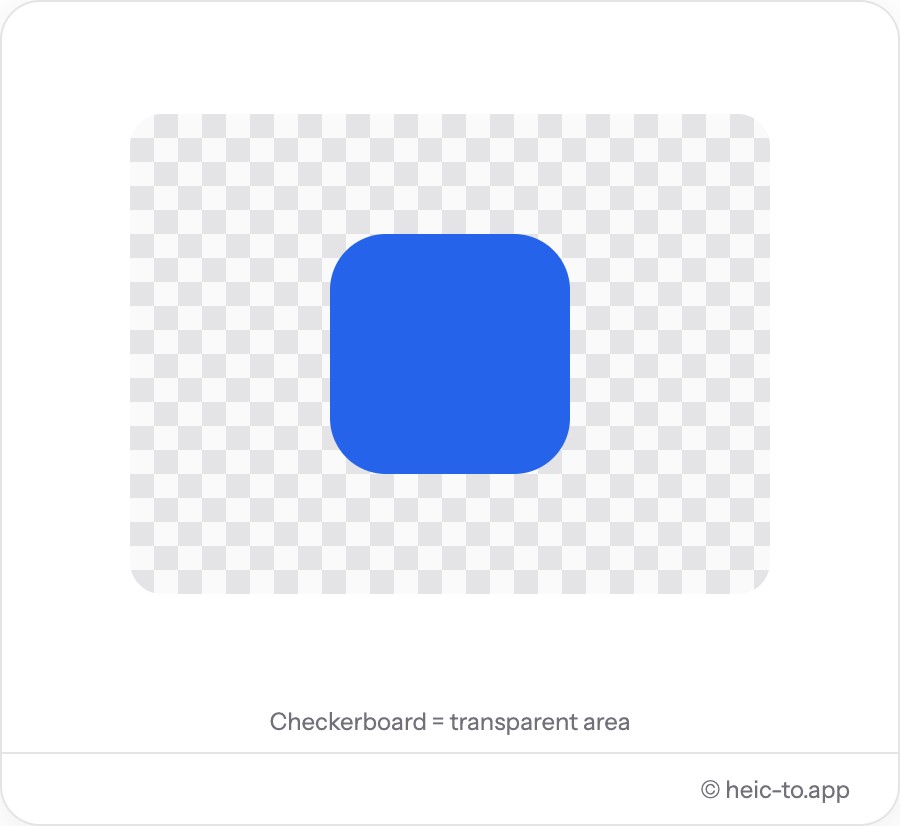
PNG is a lossless format: converting to it doesn't discard any image data, unlike JPG which compresses by throwing away detail the eye is less likely to notice. That makes PNG the right choice for screenshots, scanned documents, diagrams and anything with sharp text or hard edges, where JPG compression can introduce visible blur or blocky artifacts around fine lines.
PNG also supports transparency. If the original image has a transparent background — common in graphics and stickers exported as HEIC — that transparency is preserved in the PNG output; converting to JPG would instead fill it with solid white.
The cost is file size: a lossless PNG is typically several times larger than a JPG of the same photo, because PNG can't use the same aggressive detail-discarding compression JPG relies on. For ordinary phone photos you plan to share or upload, JPG is usually the more practical choice — save PNG for images where every pixel is meant to be exact.
How PNG compression actually works
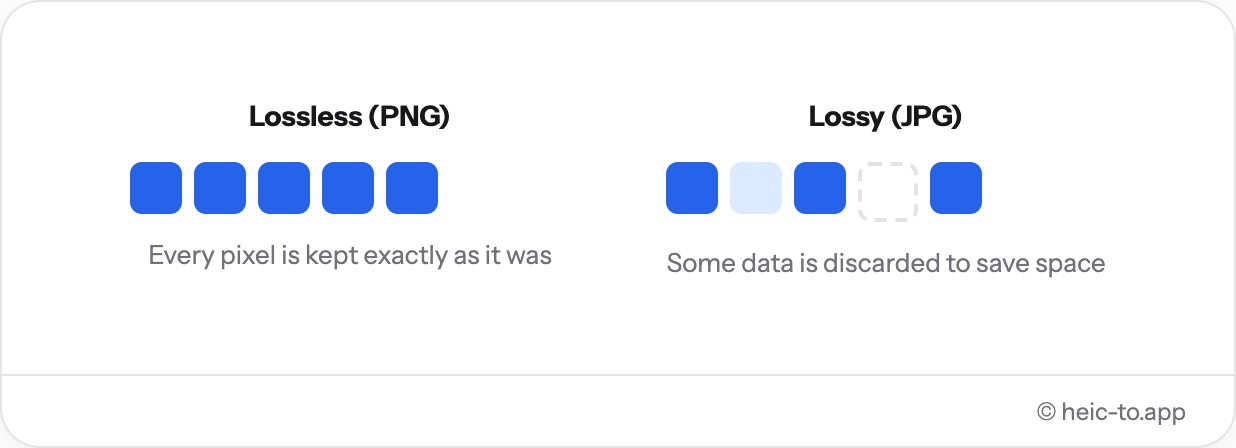
PNG uses a lossless algorithm called DEFLATE — the same compression family behind ZIP files — combined with a filtering step that predicts each pixel from its neighbors before compressing the difference. Because it only removes redundancy that can be perfectly reconstructed, decompressing a PNG always returns the exact original pixels, byte for byte.
JPG works completely differently: it discards color and detail information the eye is statistically less likely to notice, which is what makes its files so much smaller — but that data is gone for good once thrown away. PNG can't use that trick, so a photo full of natural texture and subtle gradients — skin, sky, foliage — compresses far less efficiently as PNG than the same photo does as JPG, even though the PNG algorithm itself is working exactly as intended.
That's also why PNG shines on the opposite kind of image: flat colors, sharp text and hard edges — like a screenshot or a logo — compress very well under DEFLATE, because there's much less random pixel-to-pixel variation for the filter to work against.
When PNG is the better choice
In practice this comes down to a handful of concrete cases: a screenshot of an app's interface where every button and line of text needs to stay crisp, a logo or icon exported with a transparent background, a diagram or chart made of flat colors and thin lines, or a sticker-style graphic meant to sit cleanly on top of other images without a visible edge.
Reach for PNG when you need to re-edit the image later (each re-save stays lossless), when it contains text or line art rather than a photo, or when transparency matters — logos, icons, and app screenshots taken and stored as HEIC on newer iPhones all fall into this category.
It's also the safer pick before uploading to a design tool, print service, or any workflow with further edits ahead: starting from a lossless PNG means later crops, filters or overlays aren't compounding compression artifacts that were already baked in by an earlier JPG export.
For a typical camera photo destined for messaging, social media or a web upload, PNG's extra file size buys you nothing visible — convert to JPG instead, or use PDF if you need a single shareable document.
Coming straight from an iPhone and just need JPG? See our iPhone-to-JPG conversion guide.
PNG file size — what to expect
There's no fixed ratio, since it depends entirely on what's in the photo, but as a rough guide: a typical iPhone camera photo converted to PNG usually comes out several times larger than the same photo saved as JPG, because natural photos are exactly the case lossless compression struggles with. A screenshot or a graphic with large flat-color areas behaves the opposite way — PNG often lands close to JPG in size, or even smaller, since DEFLATE handles that kind of image efficiently. If a PNG download feels unexpectedly large, it's worth checking whether JPG would actually serve the same purpose.
Frequently asked questions
Why is PNG larger than JPG?
PNG stores every pixel losslessly, while JPG compresses by discarding detail the eye barely notices. That makes JPG files much smaller but PNG files pixel-perfect.
Does converting to PNG lose any quality?
No. PNG is a lossless format, so the converted image is pixel-identical to the decoded original — nothing is discarded.
Can I convert HEIC screenshots to PNG?
Yes — screenshots and graphics saved as HEIC convert cleanly to PNG with sharp text and edges, which is exactly what PNG is designed for.
Do transparent images stay transparent?
Yes. PNG supports an alpha channel, so any transparency in the source image is preserved in the converted file. Converting to JPG instead would flatten it to solid white.
Is there a file size limit for PNG conversion?
No hard limit is set by this tool — it depends only on your device's memory, which comfortably handles typical photos and screenshots.
Is PNG always better quality than JPG?
Technically yes — PNG is lossless and JPG isn't. But that only matters if JPG compression is visible in the first place, and at high quality it usually isn't for an ordinary photo, while the PNG file is several times larger for no visible gain.
Can I reduce the PNG file size after converting?
Not with this tool, which prioritizes a fully lossless result. If a smaller file matters more than pixel-perfect accuracy, converting the same photo to JPG instead is usually the simpler fix.
Does PNG support animation, like a GIF?
Standard PNG doesn't — it's a single still-image format. This converter always produces one static image, matching what's decoded from the source HEIC photo.