 heic-to.app
How to convert HEIC to JPG
- Add your HEIC file — drag & drop it onto the widget or press “Choose a file”.
- Check the preview, pick JPG as the output format, and press “Convert to JPG”.
- Download the converted JPG file — it saves straight to your device.
Why convert HEIC to JPG for sharing
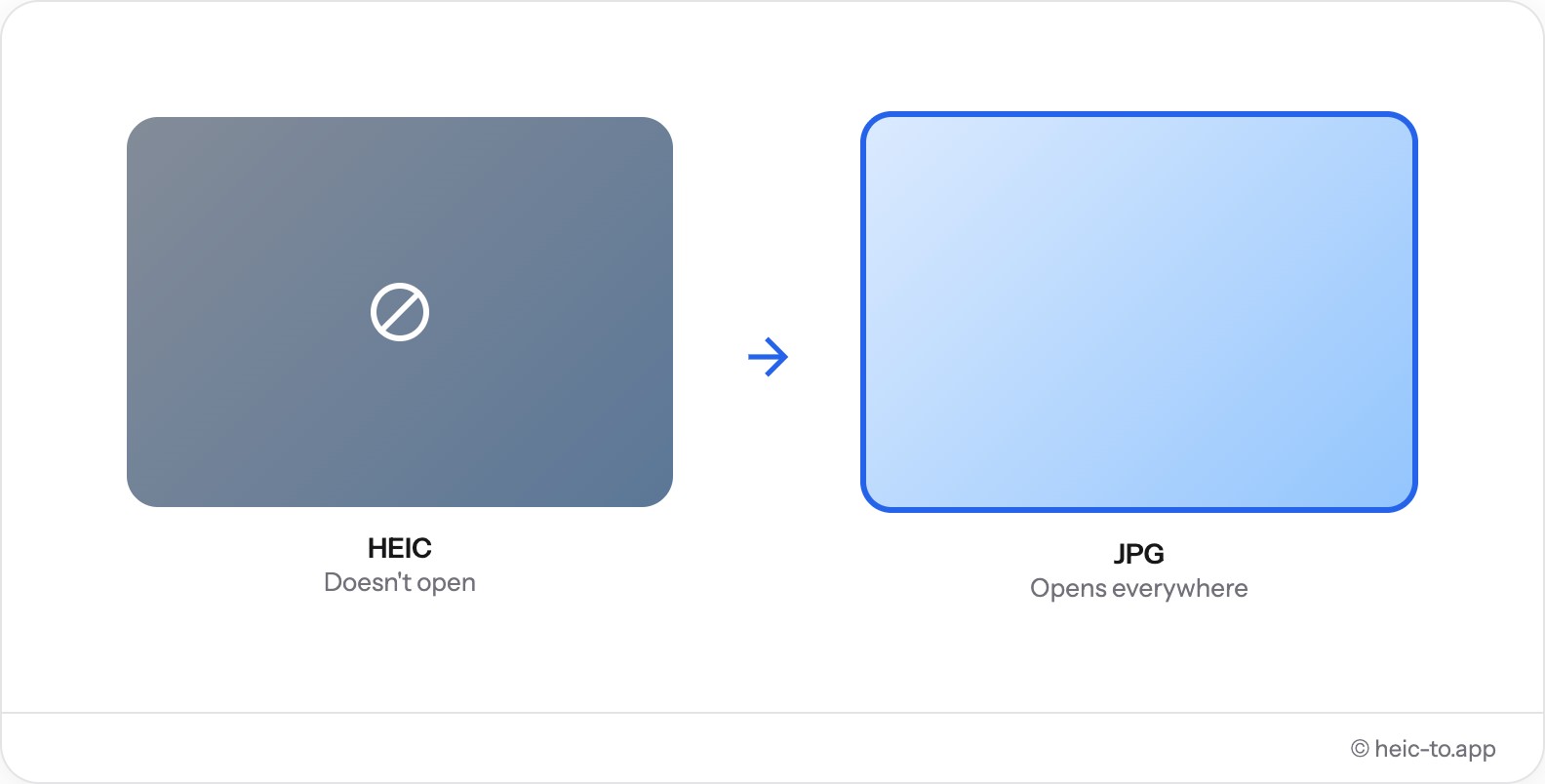
JPG (JPEG) is the most widely supported image format there is. Messaging apps, social networks, online stores, resumes and photo prints all expect JPG — sending a HEIC photo instead often shows up as a blank attachment or a "file not supported" error for the recipient.
Converting to JPG also shrinks the file further in most viewers' eyes, since JPG is what browsers and photo tools are built around: previews, thumbnails and uploads all just work without a plugin or a codec pack.
This matters most right after you take the photo: AirDrop between two Apple devices keeps HEIC as HEIC, but the moment that same photo is emailed to a Windows user, posted to an older forum, or attached to a job application form, HEIC support can no longer be assumed. Converting to JPG first removes that guesswork entirely.
If you need pixel-perfect, lossless output instead — for a screenshot or a graphic with sharp edges — convert to PNG rather than JPG.
How to convert HEIC to JPG on Mac and Windows
Mac: Preview can export a single HEIC photo to JPEG via File → Export, but there's no batch mode and no PDF or PNG option in the same step.
Windows: HEIC support requires installing the free "HEIF Image Extensions" from the Microsoft Store first; only then can File Explorer preview the photo or Photos export it as JPG.
This page skips both: pick JPG above, drop the file, and download — no extensions, no settings, works the same on any OS.
Converting straight from an iPhone? See the full guide on how to convert iPhone photos to JPG for camera settings, AirDrop and Mac Photos options.
Common situations where you need JPG
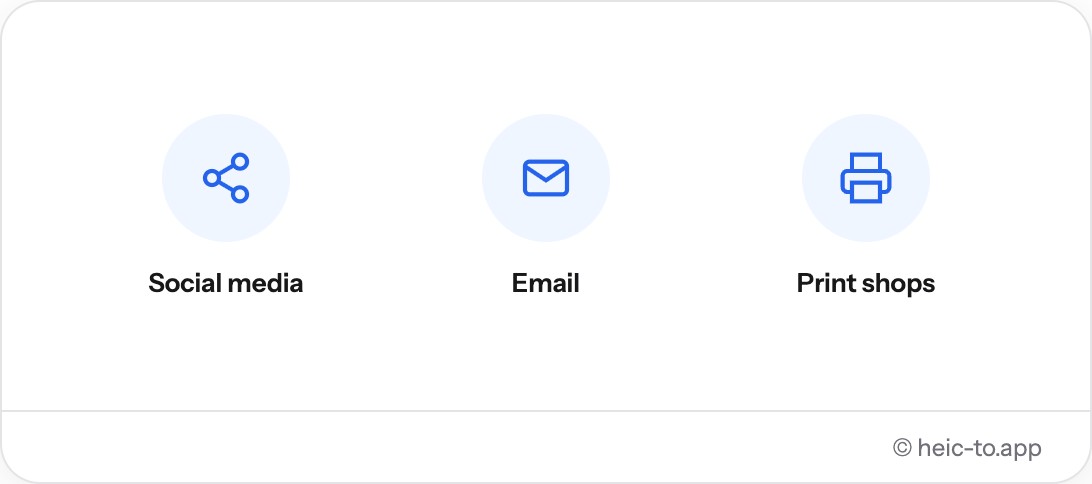
JPG comes up whenever a photo needs to leave your own device and land somewhere with rules about file types. Posting a photo to Instagram, Facebook or LinkedIn works fine with HEIC from an iPhone's own app, but re-uploading that same photo later from a different device or through a browser often fails until it's JPG.
Email attachments are another common case — sending a HEIC photo to a colleague on Windows or an older Gmail client frequently shows up as a nameless attachment icon instead of an inline image the recipient can just click and view.
Resumes and job applications are stricter still: most application portals validate against a JPG/PNG/PDF allow-list, so a HEIC-format headshot or scanned document gets rejected outright. Same story at a photo-printing kiosk or online print shop — their software expects JPG and doesn't know what to do with anything else. If a portal specifically asks for a PDF rather than an image, converting to PDF instead is the safer bet.
Troubleshooting HEIC to JPG conversion
"The converted JPG won't open" almost always means the download didn't finish, or the browser blocked it partway through — try converting again and check your downloads folder rather than assuming the format is at fault; a JPG produced by this tool is a completely standard file.
"Colors look slightly different" is usually not a conversion bug but a color-profile difference: iPhone photos are typically captured in the wide-gamut Display P3 color space, and some older JPG viewers render P3 images a little more muted than the vivid preview you're used to seeing on the iPhone screen itself.
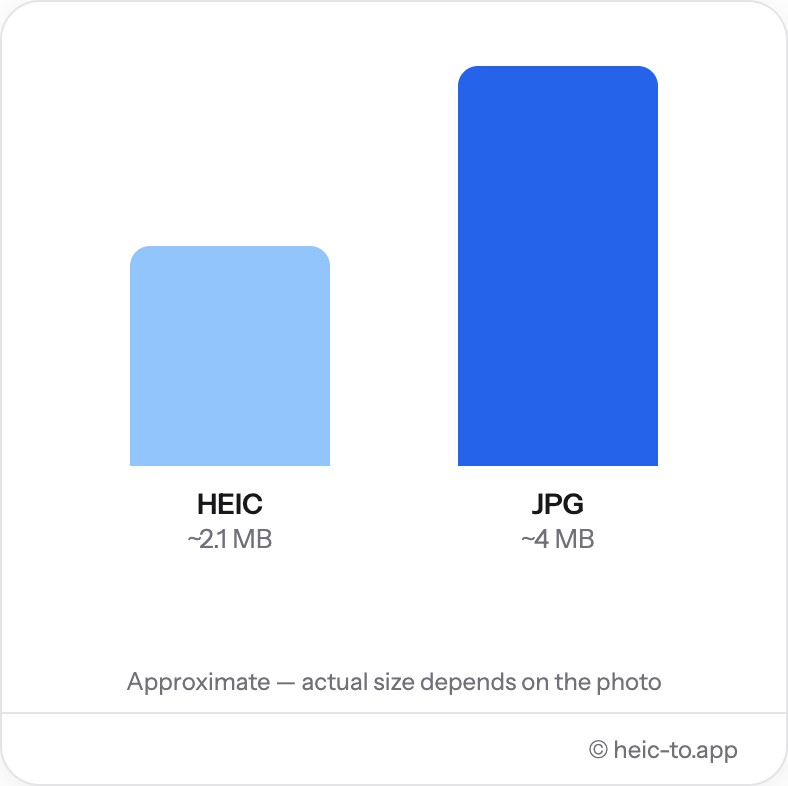
"The JPG is bigger than I expected" can happen because HEIC's HEVC compression is genuinely more efficient than JPEG's older algorithm — converting from HEIC to JPG at high quality sometimes produces a larger file for the same image, which is the price of a format everything can open.
Frequently asked questions
How do I convert HEIC to JPG on a Mac?
Open the photo in Preview and use File → Export, choosing JPEG — or drop it into the converter above, which works the same way without opening any app.
How do I convert HEIC to JPG on Windows?
Install the free HEIF Image Extensions from the Microsoft Store, then use Photos' Save As. Or skip the install entirely and convert it in the browser above.
How do I change HEIC to JPG without losing quality?
This converter encodes JPG at high quality (92%), where any difference from the original is invisible in normal use. For a fully lossless result, choose PNG instead.
Why won't photos my iPhone sent open on my Windows PC?
Your iPhone saved them as HEIC, a format Windows doesn't read without extra software. Converting to JPG here makes them open normally, anywhere.
Is this really free, with no sign-up?
Yes. There is no account, no watermark and no limit on how many times you use it — the page just runs the conversion in your browser.
Why does the converted JPG look slightly different in color?
iPhone photos are usually captured in the Display P3 color space. Some JPG viewers render that wider color range a little more muted than the iPhone screen does — the data hasn't changed, only how a particular viewer displays it.
Why is my converted JPG bigger than the original HEIC?
HEIC's HEVC compression is more efficient than JPEG's older algorithm, so converting to JPG at high quality can produce a slightly larger file for the same photo — that's the tradeoff for a format every device can open.
Can I convert HEIC to JPG directly on my iPhone?
Yes — open this page in Safari on your iPhone, drop the photo in, and download the JPG straight to Files or Photos. See our full guide on converting iPhone photos to JPG for more options.