 heic-to.app
How to convert iPhone photos to JPG in 3 steps
- Upload your HEIC photo — drag & drop it onto the widget above, or tap "Choose a file".
- It converts instantly, right in your browser — nothing is uploaded, nothing to install.
- Download your JPG and save it straight to your device.
Why iPhone photos are HEIC instead of JPG
iPhones have saved photos as HEIC by default since iOS 11 in 2017, because it compresses images with the same efficient HEVC codec behind 4K video — roughly half the file size of an equivalent JPEG at similar visual quality. That matters when a modern iPhone camera can fill a 128GB phone with photos and 4K video within a year. The tradeoff is that HEIC support outside Apple's own ecosystem has spread slowly, which is the entire reason this page exists. For the fuller technical and historical background — why Apple built it, and what does and doesn't support it — see what a HEIC file is on the heic-to.app homepage.
iPhone-specific issues when sharing HEIC photos
Uploading straight from an iPhone's Photos library is the most common trip point: plenty of web forms and older app upload flows silently accept the HEIC file, then show a broken image icon or reject the submission after the fact, because the form's back end never expected anything but JPG or PNG in the first place.
Instagram, and a number of older or smaller web forms, either reject a HEIC file outright or silently convert it in a way that changes the crop or the color slightly — safer to convert to JPG on this page first and upload the result, rather than relying on an app to handle the format quietly and correctly.
WhatsApp is a special case: it recompresses most images fairly aggressively regardless of the original format, so a HEIC photo sent through WhatsApp often loses more visible quality than the same photo would going through Mail or Messages first as a converted JPG — worth converting before sending if the recipient needs a sharper copy.
Other ways to convert iPhone photos to JPG
The widget above is the fastest way to convert an iPhone photo to JPG — drop the file and download the result in about a second. But if you're wondering how to convert iPhone pictures to JPG without opening a browser each time, or want future photos to save as JPEG automatically instead of HEIC, here are four practical options worth knowing about, from a permanent camera setting to a one-time export.
Change iPhone camera settings for future photos
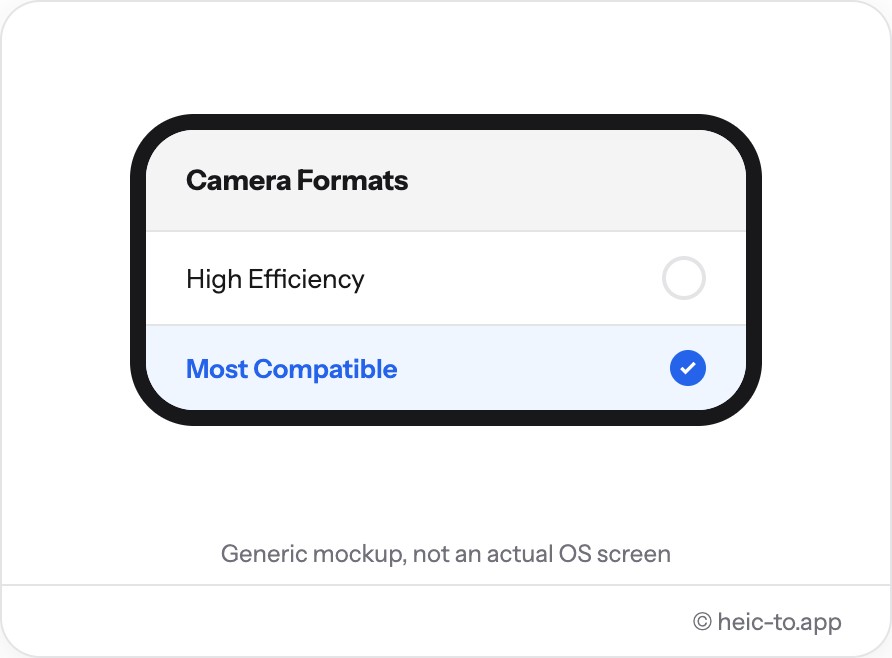
Open Settings → Camera → Formats on your iPhone and switch from "High Efficiency" to "Most Compatible." This is the closest thing to a system-level convert to JPG on iPhone setting — every photo you take from that point on saves directly as JPEG instead of HEIC, with no extra step and no third-party app.
Keep in mind this only affects new photos. It doesn't touch anything already sitting in your camera roll — for those, you'll still need to convert iPhone photos to JPG individually, using the widget above or one of the methods below. Switching back to "High Efficiency" later doesn't retroactively change anything either.
Convert iPhone photo to JPEG automatically when sharing
AirDrop between two Apple devices keeps photos as HEIC, since both ends support it. But send that same photo by Mail, or by Messages to an Android phone, and iOS often converts it to JPEG automatically during the send — no setting required, and nothing to double-check beforehand.
For more control, the Shortcuts app built into iOS can create a one-tap shortcut that takes a photo and saves a JPEG copy to your camera roll, using the "Convert Image" action set to JPEG — a handy way to batch-convert iPhone photos to JPG without a computer, once it's set up.
Convert via the Mac Photos app
If your iPhone photos have already synced to a Mac through iCloud Photos, open Photos, select one or more images, and use File → Export → Export Photos, choosing JPEG as the format — one of the few built-in ways of converting iPhone photos to JPEG in a batch, rather than one at a time.
There's no equivalent one-click batch tool on iPhone itself, or in Windows' Photos app — which is why, for a single photo, dropping it into the HEIC to JPG converter above is usually the fastest route: no cable, no iCloud sync, no export menu.
Whichever method you use, the original HEIC photo stays untouched on your iPhone — converting always creates a separate JPG copy rather than replacing anything already in your camera roll.
Select multiple photos in the Files app first
If several iPhone photos already live in the Files app rather than Photos — saved from Messages, Mail, or downloaded from iCloud Drive — tap Select, choose every HEIC file you need, then use the share sheet to open them together in Mac Photos or another app that batch-exports to JPEG, instead of converting each one individually.
This doesn't convert anything inside the Files app itself — iOS still has no built-in bulk "convert to JPG" option — but pre-selecting the files this way saves time before handing them off to whichever export method actually does the conversion.
Frequently asked questions
Why does my iPhone save photos as HEIC?
HEIC (High Efficiency Image Container) has been the default photo format on iPhone since iOS 11. It compresses photos to roughly half the size of an equivalent JPEG at the same visual quality, which is why HEIC saves so much storage space on your camera roll.
Is heic-to.app free and safe to use?
Yes. heic-to.app is completely free, with no sign-up and no watermark. Conversion happens entirely on your device using WebAssembly, so your iPhone photos are never uploaded to a server.
Does converting HEIC to JPG reduce quality?
Barely. Converting an iPhone photo to JPG here encodes at high quality (92%), where any difference from the original HEIC is invisible in normal use — for messaging, printing or uploading to the web.
Can I convert multiple photos at once?
This tool converts one iPhone photo to JPG at a time, right in your browser. If you have a whole album to convert, exporting from the Mac Photos app (File → Export) handles many photos in one batch instead.
Will converting change the file size?
Usually it gets a little smaller. JPG's compression is close to what HEIC already uses, so converting an iPhone image to JPG typically produces a similar or slightly smaller file than the original.