 heic-to.app
What is a HEIC file?
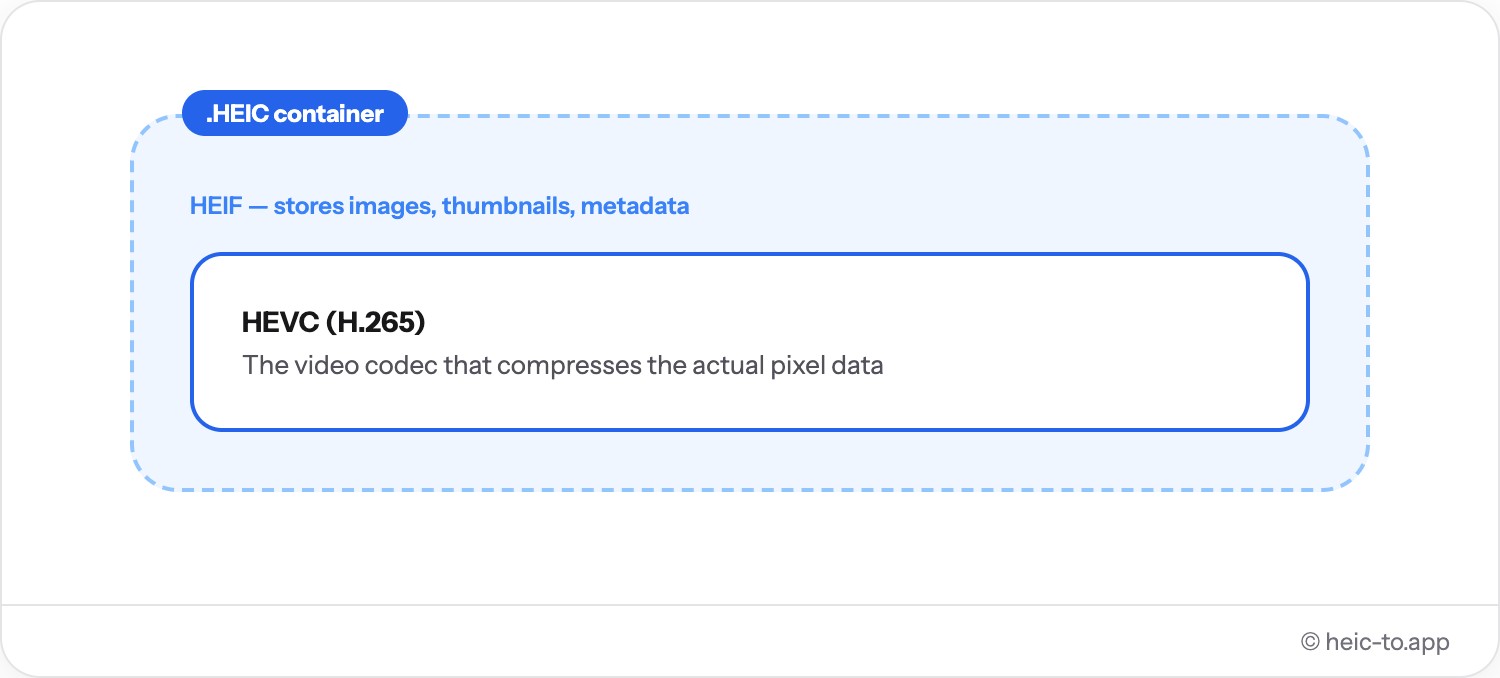
HEIC (High Efficiency Image Container) is the default photo format on iPhones and iPads running iOS 11 or later. It stores pictures inside an HEIF container using the HEVC codec, which compresses images to roughly half the size of an equivalent JPEG at the same visual quality — that is why HEIC saves so much space in your iPhone's camera roll.
The tradeoff is compatibility. HEIC is a relatively new format, so it isn't supported natively by Windows (unless you install a codec pack), most Android phones, older browsers, or many web forms and photo-printing services. That is usually the moment someone needs to convert HEIC to JPG or PNG — a format literally everything can open.
Converting doesn't touch the original photo on your phone; it just produces a second file in a format your recipient, printer or website can read.
Why Apple created HEIC
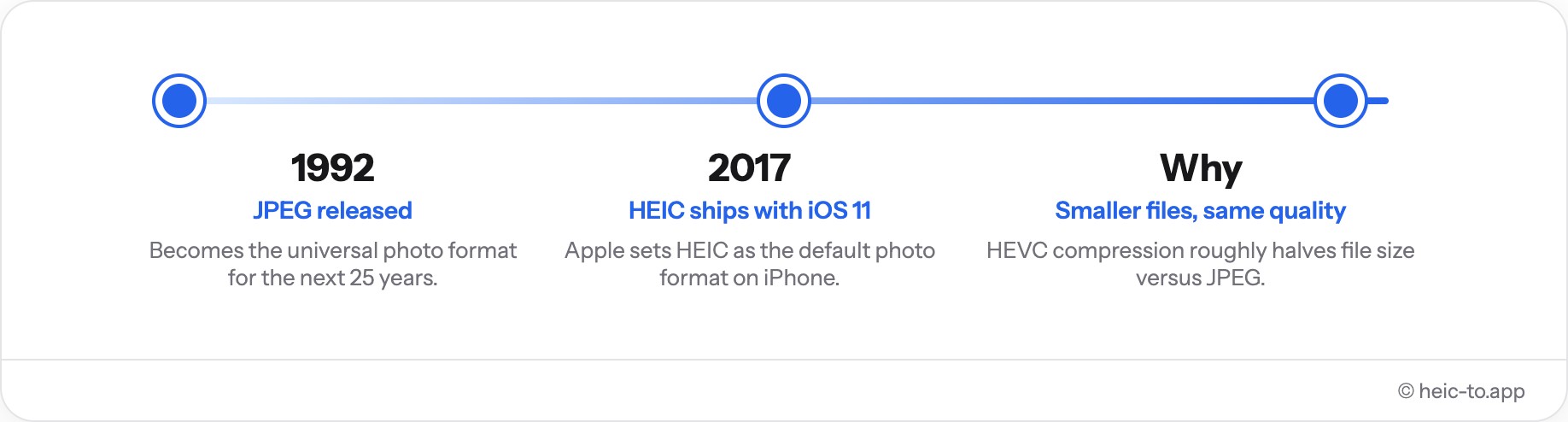
Before iOS 11 in 2017, the iPhone camera saved every photo as JPEG — a format created in 1992 that had barely changed since. As iPhone sensors got sharper and Live Photos, Portrait mode and burst shooting became routine, JPEG's decades-old compression started costing real storage: camera rolls on entry-level 16GB and 32GB iPhones could fill up within weeks. Apple needed a smaller file with no visible drop in quality.
HEIC solved that by changing the codec underneath. Instead of JPEG's aging compression, it stores images with HEVC — the same codec behind 4K video streaming — which packs roughly twice the detail into the same number of bytes. HEIC also bundles things JPEG simply can't hold: Live Photo frames, depth data for Portrait mode, and several images inside one container. The tradeoff Apple accepted was compatibility — the rest of the world's software had to catch up gradually, which is why, years later, a HEIC photo can still fail to open somewhere.
HEIC compatibility by platform
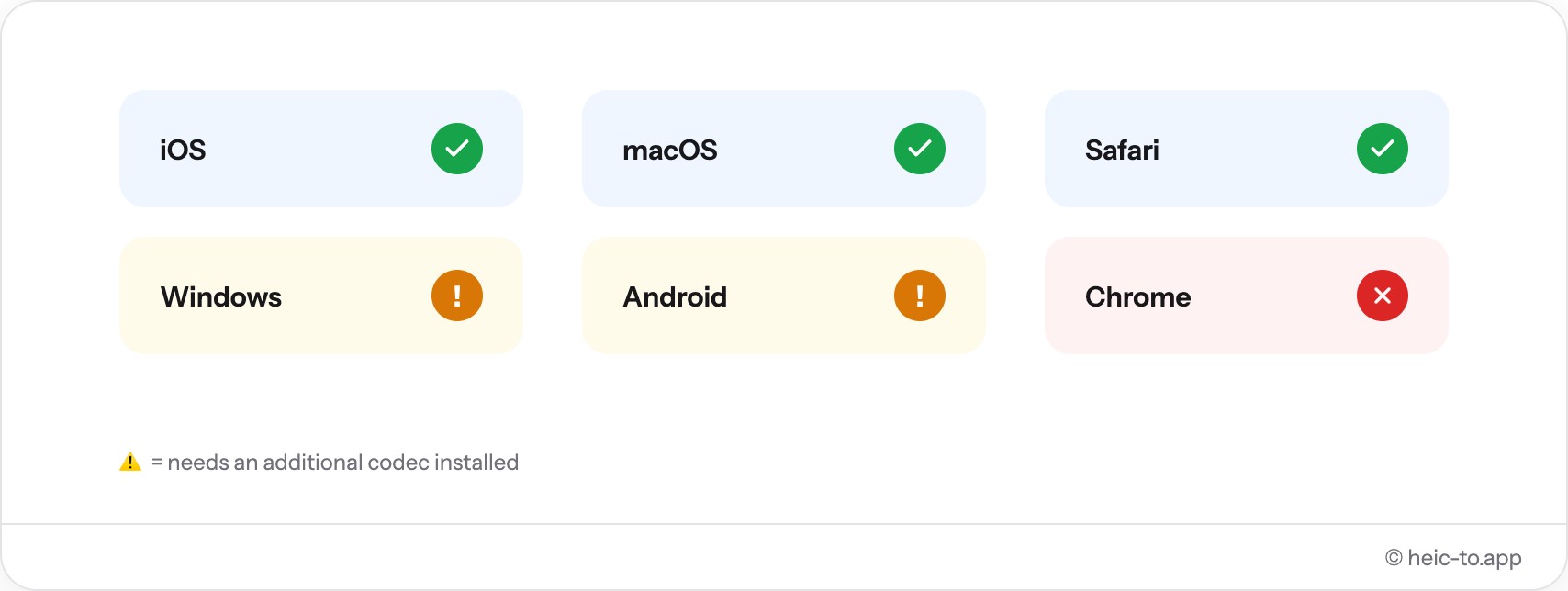
Native HEIC support has spread since 2017, but it still isn't universal. Here's what actually opens a HEIC file without any conversion:
| Platform | Opens HEIC natively? | Notes |
|---|---|---|
| iPhone / iPad (iOS 11+) | Yes | Default camera format since 2017; Photos and Files open it with no setup. |
| Mac (macOS High Sierra+) | Yes | Preview, Photos and Finder's Quick Look all display and export it. |
| Windows 10 / 11 | No, by default | Needs the free "HEIF Image Extensions" from the Microsoft Store before Photos or File Explorer can open it. |
| Android | Rarely | Most manufacturers ship no HEIC decoder; a handful of recent flagship models are the exception. |
| Chrome, Firefox, Edge | No | None of the major desktop browsers render a HEIC file dropped into a page or an email. |
| Safari (Mac and iPhone) | Yes | The one browser that displays HEIC directly, since it shares Apple's own image stack. |
PDF, JPG or PNG — which should you choose?
HEIC to JPG
Everyday photos: small files that open everywhere. The best choice for sharing, messaging and uploading to the web.
HEIC to PNG
Lossless quality for screenshots, graphics, or images you plan to keep editing. Files are larger than JPG.
HEIC to PDF
Documents and printing: scans, receipts, IDs, or a single photo you need to send as one file.
HEIC on Mac, Windows and iPhone
On iPhone: go to Settings → Camera → Formats and switch to "Most Compatible" — new photos are then saved directly as JPEG instead of HEIC. This doesn't convert photos you've already taken; for those, see our guide on converting existing iPhone photos to JPG.
Mac's Preview and Windows' Photos app (after installing Microsoft's free HEIF extensions) can also convert HEIC files, one at a time and with a few manual steps each. For the full walkthrough on each OS, see the step-by-step guides on the JPG, PNG and PDF pages.
Common problems with HEIC files
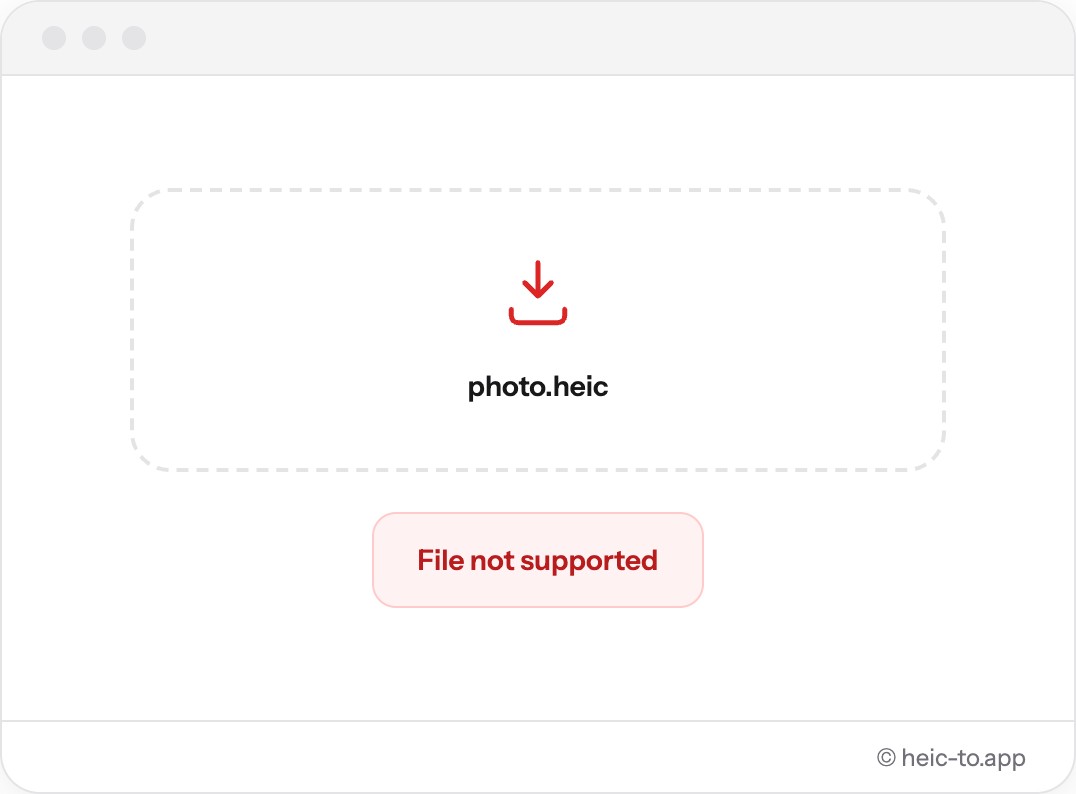
The most common complaint is a photo that simply won't open — double-clicking a HEIC file on a Windows PC shows a blank preview icon or a "Windows Photo Viewer can't open this picture" error, because there's no built-in decoder. The fix is either installing Microsoft's free HEIF extension or converting the file first.
Email is another frequent trip point: a HEIC photo attached to a message sometimes arrives as a blank thumbnail or an unopenable attachment for a recipient on Windows or an older Android phone, even though the file itself isn't corrupted — it's just in a format their mail client can't render inline.
Upload forms add a third failure mode. Job application portals, government forms and older e-commerce sites frequently validate file extensions against an allow-list that only includes .jpg, .jpeg and .png — a HEIC upload gets silently rejected or throws a generic "unsupported file type" error, often without explaining why.
Frequently asked questions
What is a HEIC file?
HEIC is the photo format iPhones use by default since iOS 11. It compresses images more efficiently than JPEG but isn't supported everywhere, which is why people convert it to JPG, PNG or PDF before sharing or uploading.
How do I open a HEIC file?
On a Mac or iPhone, HEIC files open natively in Preview or Photos. On Windows or older devices, either install Microsoft's HEIF extensions or convert the file to JPG or PNG with this tool — no installation needed.
Does this work on iPhone and in Safari?
Yes. The converter is a normal web page — open it in Safari on iPhone, tap the drop zone, choose a photo from your library, and save the result back to Files or Photos.
Are my photos ever uploaded anywhere?
No. Conversion happens entirely on your device using WebAssembly. Nothing is sent over the network — you can even switch on airplane mode after the page loads and it still works.
Is there a file size limit?
There's no artificial limit set by this tool. The only constraint is your device's own memory, which comfortably handles typical iPhone photos.
Why won't my HEIC photo open in Windows Photo Viewer?
Windows has no built-in HEIC decoder. Install the free "HEIF Image Extensions" from the Microsoft Store, or convert the file to JPG or PNG here and it opens in any viewer immediately.
Can Android phones open HEIC files?
Most can't out of the box — only a handful of recent flagship models ship a HEIC decoder. Converting to JPG or PNG is the reliable way to view a HEIC photo on any Android device.
Is HEIC the same thing as HEIF?
HEIF (High Efficiency Image Format) is the container standard; HEIC is Apple's specific implementation of it using the HEVC codec. In practice, the two terms are used interchangeably for iPhone photos.